


One day, you’re happily working on your WordPress site—or just trying to visit it—and suddenly… BAM! You see a blank screen with the message:
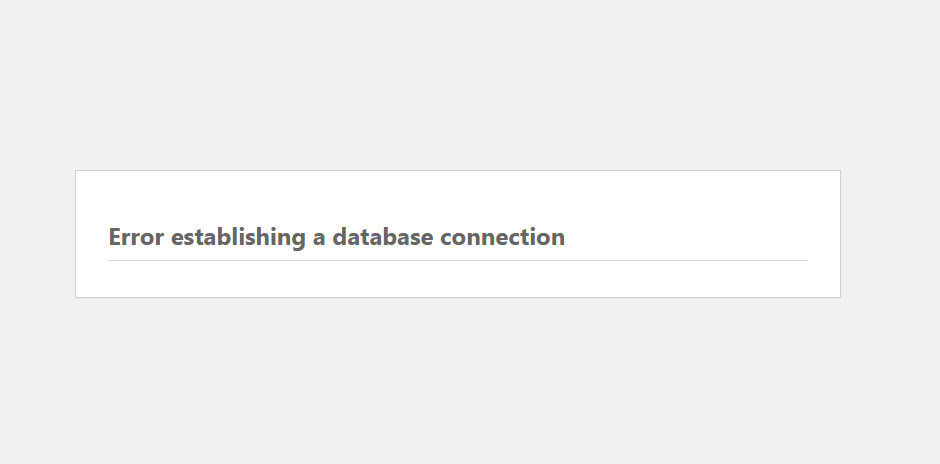
It’s frustrating. It’s confusing. And it can be a little scary, especially if you don’t know what it means. But don’t worry! This is a common WordPress issue, and in most cases, it’s pretty easy to fi
Let’s walk through what’s going on and how to get your website back up and running.
What Does That Error Even Mean?
Basically, WordPress needs to talk to your database to load your site. Your database holds everything from your posts and pages to your login info. If WordPress can’t connect to it, your site can’t load—and you’ll see that error message.
Why Is This Happening?
There are a few possible reasons:
❌ Your database username or password is wrong.
❌ Your database is broken or corrupted.
❌ The server where your database lives is down or overloaded.
❌ There’s something up with your hosting provider.
❌ Some WordPress core files may be corrupted.
1. Check Your Database Info
In your WordPress files, there’s one called wp-config.php. This file tells WordPress how to connect to your database.
Open it up and look for these lines:
define('DB_NAME', 'your_database_name');
define('DB_USER', 'your_database_user');
define('DB_PASSWORD', 'your_password');
define('DB_HOST', 'localhost');
Make sure everything is spelled correctly and matches the info from your hosting provider.
2. Test the Database Connection (Optional, but Helpful)
If you want to be sure your site can actually talk to the database, you can upload a quick test file to your server:
<?php
$connection = mysqli_connect('localhost', 'your_user', 'your_password', 'your_db_name');
if (!$connection) {
    die('Connection failed: ' . mysqli_connect_error());
}
echo 'Connected successfully!';
?>
Save that as something like testdb.php, upload it to your site, and open it in your browser. If it says
“Connected successfully!”, you’re good on that end.
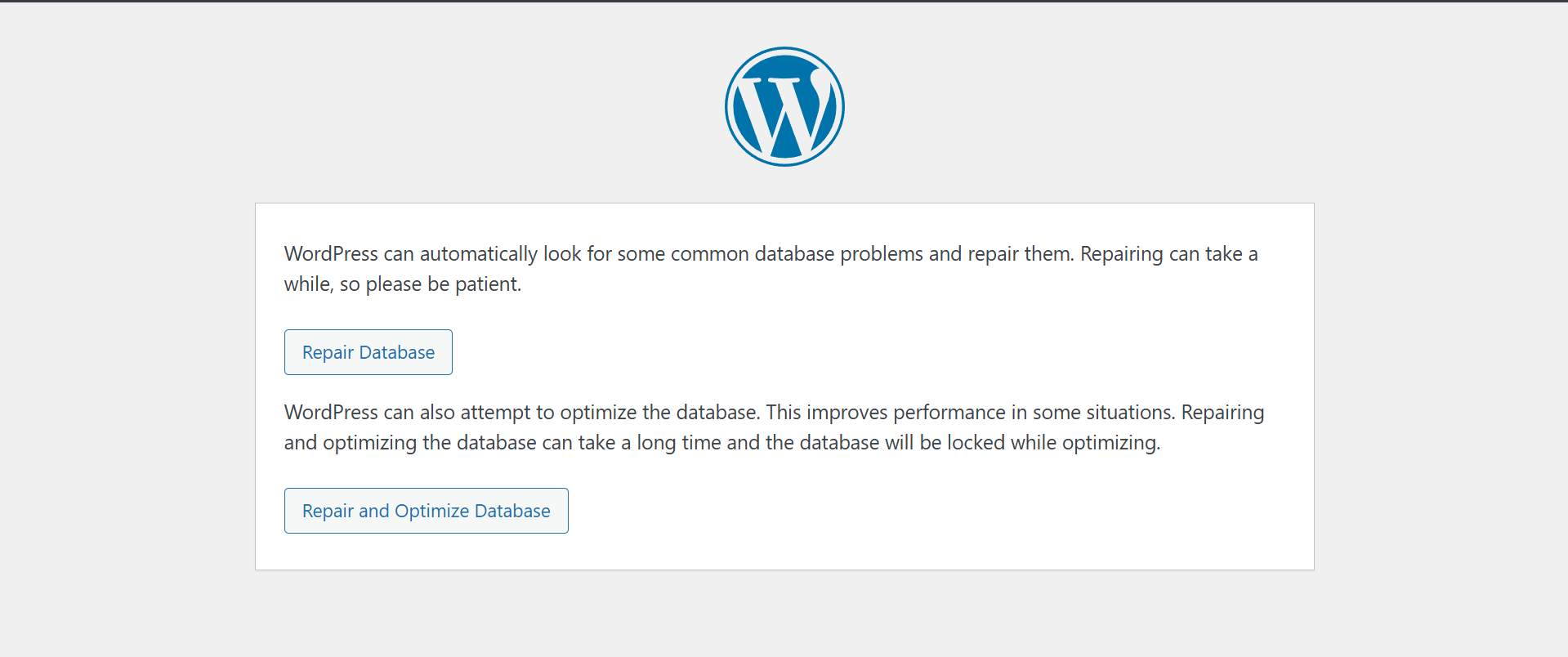
3. Try Repairing the Database
In some cases, your WordPress database may be corrupted or slightly damaged, which can cause various site issues. Fortunately, WordPress includes a built-in tool to help repair the database.
1. To use it, add the following line to your wp-config.php file, just before the line that says ->“That’s all, stop editing!”:
define('WP_ALLOW_REPAIR', true);2. Go to this link (just change “yourdomain.com”):
Add this to your browser link
yourdomain.com/wp-admin/maint/repair.php3. Click the button to repair or repair + optimize your database.
Important: After you’re done, go back and remove that line from your wp-config.php. You don’t want that tool to be publicly available all the time.
Database tables can become corrupted for a variety of reasons
Not all database connection issues are caused by incorrect credentials or server overload. Sometimes, the problem runs deeper. Here are some less obvious but critical reasons why your WordPress database might stop working properly:
Common Causes of WordPress Database Connection Errors
- Corrupted Data
Malware, viruses, or badly built plugins/themes can mess with your data. If anything goes wrong when saving or pulling information, your database might get corrupted. - Interrupted Writes
Sudden power outages, server crashes, or unexpected restarts can stop the database from saving data properly. This can leave records incomplete or corrupted. - Hardware Problems
Databases run on physical machines, and if something like the hard drive or memory fails, it can damage your database or make it unreachable. - Software Bugs or Version Issues
Bugs in MySQL or MariaDB (the databases WordPress uses) can cause trouble. Also, if your WordPress, PHP, or server versions don’t play well together, you might run into errors.
4. Call Your Web Host (Live Website)
If you’ve tried all the steps above and the issue still isn’t resolved, your hosting provider might be the source of the problem. Common server-side issues include a crashed or overloaded database server, misconfigured settings, or temporary outages.
Get in touch with your web host’s support team and provide them with as much detail as possible—such as any error messages you’ve encountered and the troubleshooting steps you’ve already taken. They should be able to check the server status, review your database configuration, or help you reset any necessary credentials.
5. Localhost: Fixing “Error Establishing a Database Connection”
Confirm MySQL Server is Running
Your database won’t connect if MySQL isn’t running.
- XAMPP/WAMP/MAMP: Open the control panel and make sure MySQL is started.
- LocalWP: Check if the site is “Running” and restart it if needed.
6. Last Resort: Restore from a Backup
If none of the solutions have worked, your final option may be to restore your website from a backup. If you’ve set up automatic backups using a plugin or taken manual backups regularly, you can revert your site to the last stable version.
If you don’t have a backup handy, don’t worry—many web hosting providers keep periodic backups of your website. Reach out to your host and ask if they can restore your site to a previous working state. Most reputable hosts offer this service, either for free or for a small fee, and it can save you hours of troubleshooting.
Tips to Prevent This in the Future
- Use reliable hosting. Some cheap hosts are more prone to server errors.
- Back up your site regularly. Just in case something goes wrong.
- Keep your plugins, themes, and WordPress itself updated.
- Avoid editing core WordPress files unless you know what you’re doing.
Final Thoughts
Seeing the dreaded “Error establishing a database connection” can feel like your entire website just vanished—but don’t panic. In most cases, it’s something you can fix with a few simple steps.
Take a deep breath, work through the guide above, and chances are your site will be back online before you know it. And if you’ve encountered this error before and found a different solution that worked for you, feel free to share it in the comments—we’d love to hear your tips and help others in the process!
