


Sometimes, you may want to display products on your Shopify store without letting customers buy them. Whether you’re building a digital catalog, launching soon, showcasing out-of-stock items, or managing wholesale pricing separately, making products view-only can be incredibly useful.
In this post, we’ll walk you through how to make your Shopify products view-only, step by step—with no apps required.
What Does “View-Only” Mean?
A view-only product means your customers can:
- See the product on your website
- Browse product photos and details
- But cannot add the product to their cart or checkout
This creates a catalog-style experience, where your store acts more as a portfolio than a traditional e-commerce site.
Methods to Make Products View-Only on Shopify
There are a few ways to go about it. Below are the most common methods, with code snippets and tips for customizing your theme.
Remove the “Add to Cart” Button via Theme Code
This is the cleanest way to stop customers from purchasing while keeping the product visible.
Step-by-Step Instructions:
1. From your Shopify admin, go to:Online Store > Themes > ... > Edit Code
2. In the Sections folder, locate and open:
product-template.liquidor for some theme
main-product.liquid3. Find the Add to Cart button code. It often looks like this:
<button type="submit" class="product-form__submit">Add to cart</button>4. Wrap it in a condition to hide it for specific products or tags:
{% unless product.tags contains 'view-only' %} <button type="submit" class="product-form__submit">Add to cart</button> {% endunless %}5. Save the file.
6. Tag the product with “view-only” in your Shopify admin.
This will hide the button only for products with that tag—giving you full control.
Replace the Button with a Message
{% if product.tags contains 'view-only' %}
  <p class="view-only-message">This product is for display only.</p>
{% else %}
  <button type="submit" class="product-form__submit">Add to cart</button>
{% endif %}
Instead of hiding the button, you can show a message like “For viewing only”
You can style the message with CSS to make it stand out.
Use Inventory Settings (Not Ideal, But Possible)
If you’d rather not touch the code, a simple trick is to set the product as Out of Stock and disable backorders.
- Go to the product’s Inventory section.
- Set Quantity to
0. - Uncheck “Continue selling when out of stock.”
The downside is that it may show a “Sold Out” badge, which isn’t always the look you want.
Disable Checkout via on Shopify Theme
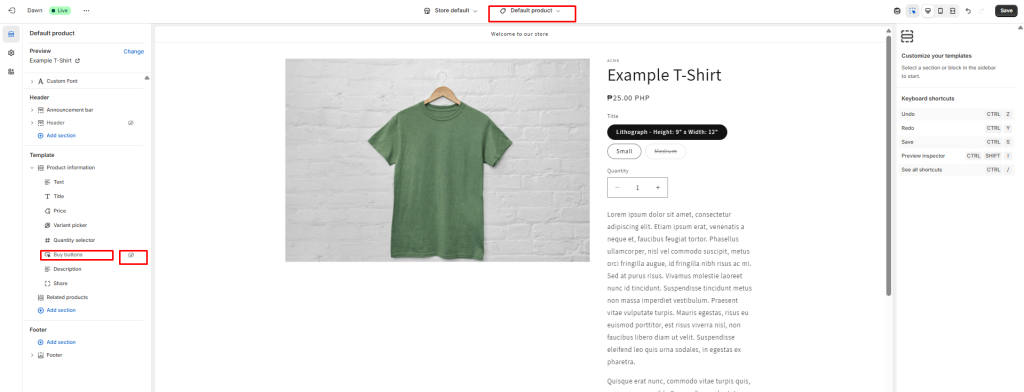
If you use Shopify’s Buy Button to embed products hide it on the single product page
you can also add an “Custom Liquid” that hides the Cart on a specific product categories etc.
Make the Whole Store View-Only (Catalog Mode)
If your entire store is meant to be a digital catalog, consider:
- Hiding all “Add to Cart” buttons using the theme’s Liquid code.
- Disabling the cart and checkout links in the header and footer.
- Optionally installing a Catalog Mode app (like Easy Catalogs or Disable Cart Button).
When Should You Use View-Only Products?
Here are some common use cases:
- Wholesale: Showcase items without retail pricing or checkout
- Pre-launch Stores: Build interest without taking orders yet
- Portfolio or Lookbook Sites: Present your work or collection visually
- Out-of-Stock Displays: Let people browse items that aren’t currently for sale
- Custom Order Products: Let customers contact you for pricing or quotes
Final Thoughts
Making products view-only on Shopify is a simple but powerful tweak that can turn your store into a stunning product showcase. Whether you’re waiting for stock, building hype, or working B2B, the methods above give you the flexibility to customize your storefront experience.
If you’re not comfortable editing code, consider reaching out to a Shopify expert—or message us, and we’d be happy to help!
Need help customizing your Shopify store? Contact Us
Let us know your goals, and we’ll guide you step by step.
