



If you’re using SquareUp (Square Online) and want to apply your own custom styling, you’ve likely noticed there’s no direct way to edit the site’s HTML or CSS. However, there’s a clever workaround that lets you inject a custom CSS file into your site by using the Tracking Tools feature and hosting your stylesheet externally.
Here’s a complete guide to help you do it step by step.
Step 1: Add the Code to Your SquareUp Website
- Go to your Square Online dashboard:
https://square.online/app/website/... - Navigate to:
Site Settings > Tracking Tools - Paste the following code inside code box (Screenshot below)
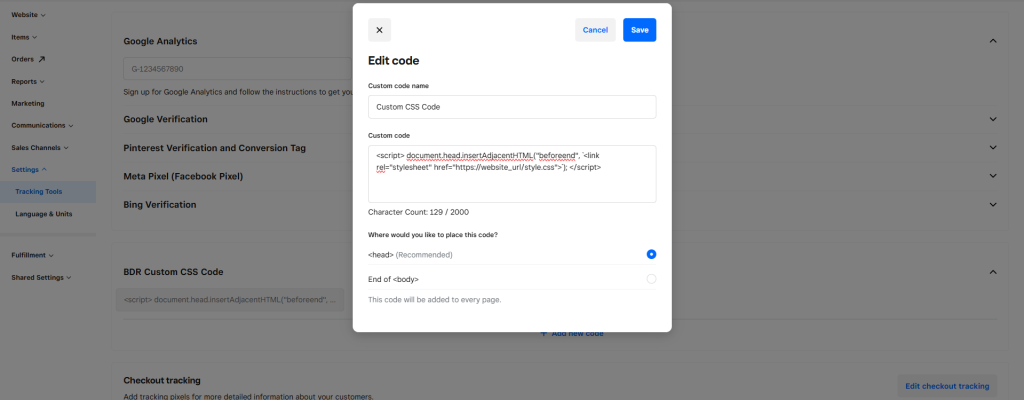
<script> document.head.insertAdjacentHTML("beforeend", `<link rel="stylesheet" href="https://website_url/style.css">`); </script>- Replace
website_urlwith the actual URL where your CSS file is hosted (we’ll show you how to set that up next). - Click Save to apply the changes.
Once your CSS file is live and the correct URL is inserted, it will apply your custom styles across your SquareUp site.
Step 2: Host Your CSS File Using GitHub and Vercel
SquareUp requires your CSS file to be hosted on a public URL. One of the easiest free ways to do this is by using GitHub + Vercel.
Create a GitHub Repository
- Visit github.com and create a new public repository.
- Inside the repo, add a file named
style.css. - Add your custom CSS rules and commit the file.
body {
  background-color: #f5f5f5;
}
Deploy with Vercel
- Visit vercel.com and sign up (or log in).
- Connect your GitHub account and import the repository you created.
- Deploy the project. Vercel will generate a public URL like:
https://your-project-name.vercel.app/style.css
Use this URL in the <link> tag you added in Step 1.
Final Result
Once everything is set up:
- Your custom styles will load on your SquareUp site.
- You can edit your CSS anytime through GitHub.
- Changes are automatically updated via Vercel without touching your Square dashboard again.
Summary
Even though SquareUp doesn’t support full code customization, you can still control the styling of your site by:
- Hosting your custom CSS on Vercel via GitHub
- Injecting it using a script in the Tracking Tools section
This method gives you flexibility while keeping your site managed within the SquareUp ecosystem
