


If you’re creating several pages with comparable layouts, duplicating a WordPress page can save you a lot of time. When creating landing pages, replicating a services layout, or trying out a new variation, making an accurate copy of a page guarantees consistency and reduces effort.
This guide will teach you how to clone a WordPress page, using both a manual method and an approach with plugins. No unnecessary content—only straightforward, incremental directions.
What are the reasons for cloning a WordPress page?
With cloning, you are able to:
- Utilize an existing page design instead of creating one from the ground up.
- Ensure that branding remains uniform throughout your site.
- Easily conduct A/B tests on various content layouts.
- Use tried-and-true templates to save time when creating new pages.
Recommended Plugin: Duplicate Page
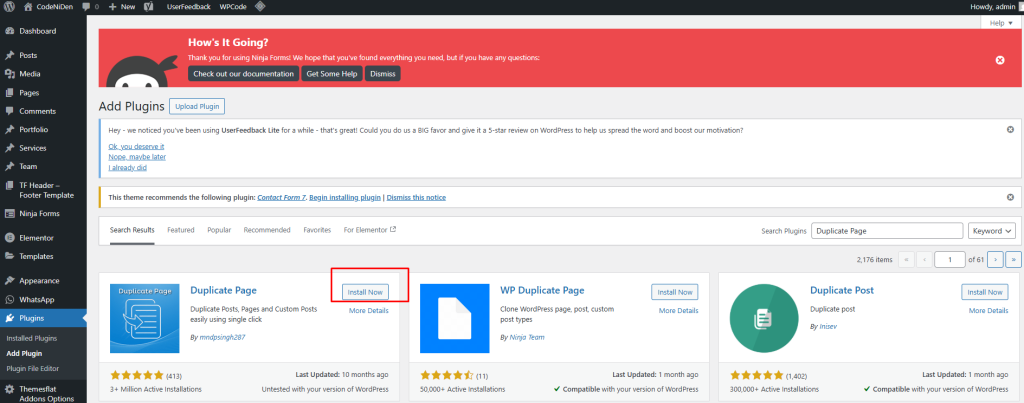
This free plugin makes it easy to copy posts, pages, and custom post types.
How to Clone a Page in WordPress Using a Plugin (With Plugin – For Beginners)
If you want to clone pages quickly and frequently, using a plugin is the most efficient method.
How to Use It:
- Go to Plugins > Add New and search for “Duplicate Page.”
- Click Install Now and then Activate.
- Head to Pages > All Pages.
- Hover over the page you want to clone and click Duplicate This.
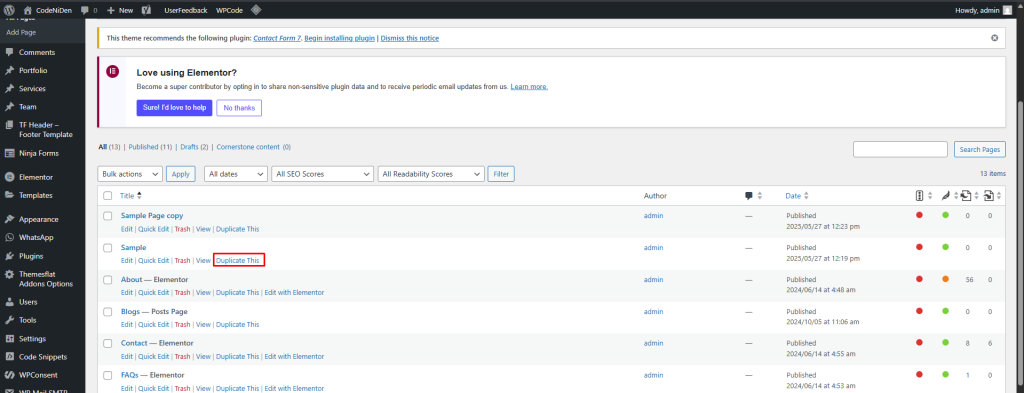
A new draft will be created instantly.
Alternatives:
Elementor’s Save as Template (for Elementor users). It’s a common task for WordPress site owners, developers, and marketers — and it’s easier than you think.
Yoast Duplicate Post – is a simple yet powerful plugin that allows you to clone posts, pages, and custom post types with just one click.
Duplicate PP – This plugin allows you to copy content from the admin dashboard (back end) or the single post view (front end).
Duplicate Post – This WordPress duplicate plugin allows you to identify and eliminate copied content in just a few clicks, in addition to cloning posts.
How to Duplicate a WordPress Page with manual code
You can manually duplicate a WordPress page by adding a custom function to your theme’s functions.php file or by creating a custom plugin. This approach will add a “Clone” option to your admin page list.
If you’d rather avoid using a plugin, you can replicate WordPress posts by editing the functions.php file of your active theme, which is usually located in the wp-content/themes/your-theme-name/ directory. Be careful not to modify files in the wp-includes folder, as it contains core WordPress files that should generally remain unchanged.
There are several tools you can use to edit the functions.php file:
- Cpanel File Manager in your web hosting control panel
- FTP client like FileZilla or Cyberduck
- Code editor, such as VS Code or Sublime Text
- WordPress built-in Theme File Editor located in Appearance → Theme File Editor
If you’re using an FTP client, you’ll first need to create an FTP account with your hosting provider and connect it to your site. We recommend using FileZilla, as it’s a user-friendly and widely supported FTP client.
The quickest way is to use the Theme File Editor in your WordPress dashboard, but proceed with care — a single typo in your functions.php file can take your site offline. Be sure to create a backup of your theme files before making any edits.
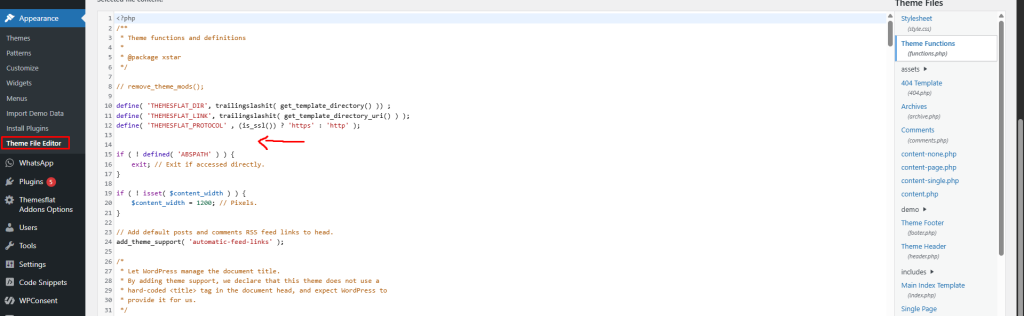
1. Add Code to functions.php
Open your theme’s functions.php
file and add the following code:
function add_duplicate_page_link($actions, $post) {
    if ($post->post_type == 'page') {
        $actions['duplicate'] = '<a href="' . wp_nonce_url('admin.php?action=duplicate_page_as_draft&post=' . $post->ID, basename(__FILE__), 'duplicate_nonce') . '" title="Duplicate this page" rel="permalink">Clone</a>';
    }
    return $actions;
}
add_filter('page_row_actions', 'add_duplicate_page_link', 10, 2);

function duplicate_page_as_draft() {
    global $wpdb;

    if (! (isset($_GET['post']) || isset($_POST['post']) || (isset($_REQUEST['action']) && 'duplicate_page_as_draft' == $_REQUEST['action']))) {
        wp_die('No page to duplicate has been supplied!');
    }

    // Nonce check
    if (!isset($_GET['duplicate_nonce']) || !wp_verify_nonce($_GET['duplicate_nonce'], basename(__FILE__))) {
        return;
    }

    $post_id = absint($_GET['post']);
    $post = get_post($post_id);

    if (isset($post) && $post != null) {

        $new_post = array(
            'post_title'     => $post->post_title . ' (Copy)',
            'post_content'   => $post->post_content,
            'post_status'    => 'draft',
            'post_type'      => 'page',
            'post_author'    => get_current_user_id(),
            'post_excerpt'   => $post->post_excerpt,
            'post_parent'    => $post->post_parent,
            'post_password'  => $post->post_password,
            'menu_order'     => $post->menu_order,
            'to_ping'        => $post->to_ping,
            'pinged'         => $post->pinged,
        );

        $new_post_id = wp_insert_post($new_post);

        // Copy post meta
        $post_meta = get_post_meta($post_id);
        foreach ($post_meta as $key => $values) {
            foreach ($values as $value) {
                add_post_meta($new_post_id, $key, maybe_unserialize($value));
            }
        }

        // Redirect to edit screen
        wp_redirect(admin_url('post.php?action=edit&post=' . $new_post_id));
        exit;
    } else {
        wp_die('Page creation failed, original page not found.');
    }
}
add_action('admin_action_duplicate_page_as_draft', 'duplicate_page_as_draft');
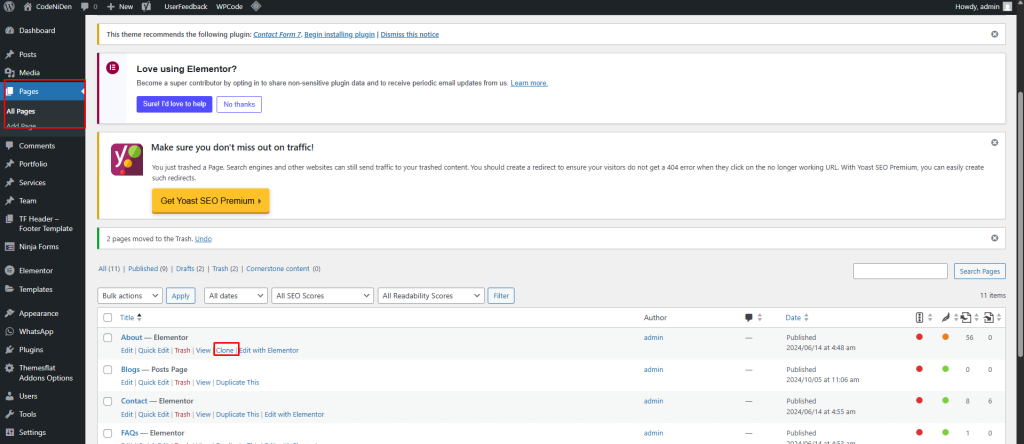
2. Go to Pages > All Pages or Post
You’ll now see a “Clone” option under each page when you hover over it.
How to Manually Clone a WordPress Page (No Plugin)
This approach is great if you want full control or prefer not to install plugins.
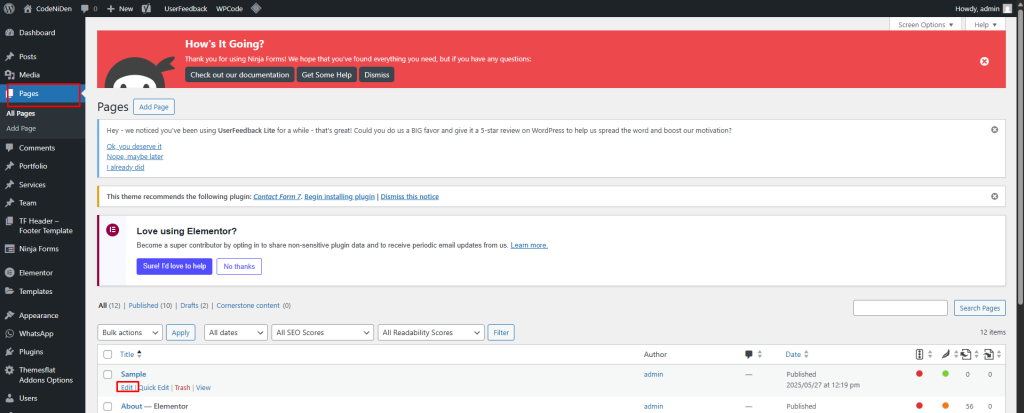
1. Open the Page You Want to Copy
From your WordPress dashboard, go to Pages > All Pages, then click Edit on the page you want to duplicate.
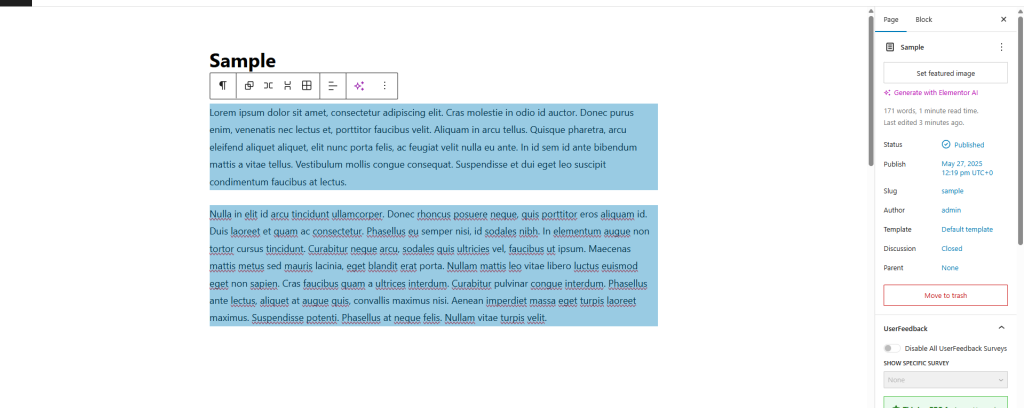
2. Copy the Page Content
Once you’re in the editor, highlight all the content (use Ctrl + A then Ctrl + C on Windows or Cmd + A and Cmd + C on Mac).
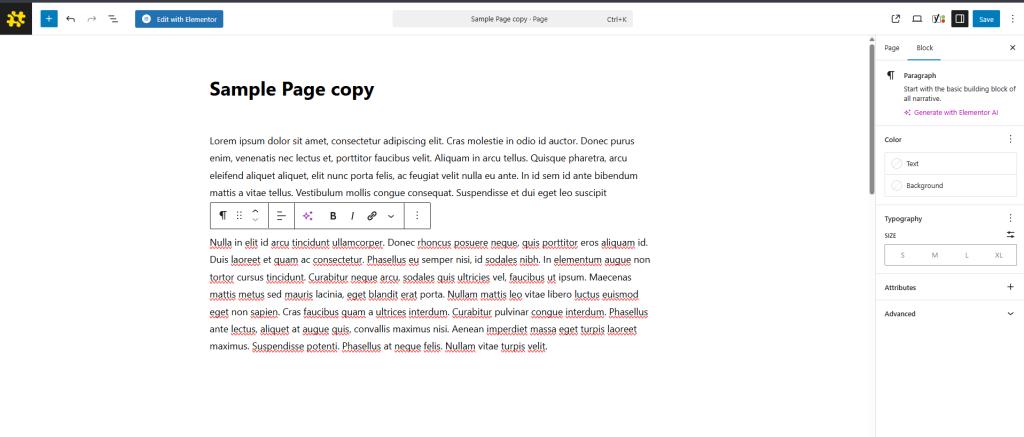
3. Create a New Page
Navigate to Pages > Add New, enter a new title (e.g. “Sample Page Copy”), and paste the content (Ctrl + V or Cmd + V).
4. Adjust the Page Settings
Update the page slug (URL), featured image, SEO meta (if applicable), and layout settings or template assigned by your theme.
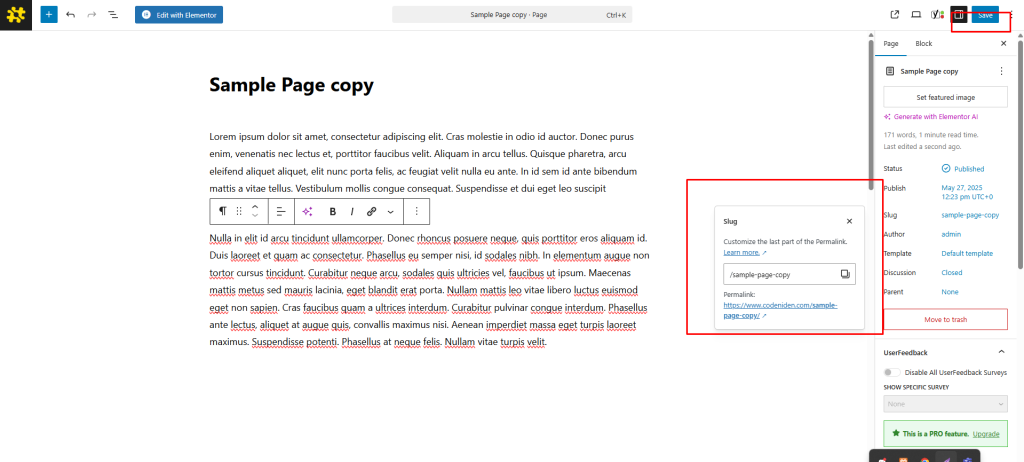
5. Publish the Cloned Page
Click Publish and your cloned page is live. Done!
💡 Tip: Be sure to review any form actions, links, or image paths — especially if you’re cloning from a live page with external dependencies.
Things to Watch Out For
When cloning a page, be mindful of:
- Duplicate titles – Search engines dislike repetition.
- SEO settings – Adjust meta descriptions and keywords for the new page.
- Tracking codes or forms – Ensure they don’t duplicate user submissions.
Common Use Cases for Page Cloning
Still not sure when you’d need to clone a page? Here are some common scenarios:
- Creating service pages based on a consistent template.
- Building location-specific pages with similar content.
- Testing a redesign without affecting the original.
- Designing marketing funnels with consistent layout blocks.
Final Thoughts
Cloning a WordPress page is a smart way to work more efficiently. Whether you prefer the hands-on To clone a WordPress page is to adopt a more efficient approach. Both the hands-on manual method and the speed of a plugin are effective options; choose the one that best aligns with your workflow.
Looking for more WordPress tips like this one? Take a look at our newest post about optimizing the speed of your WordPress site, and discover more WordPress tutorials on our blog.
