



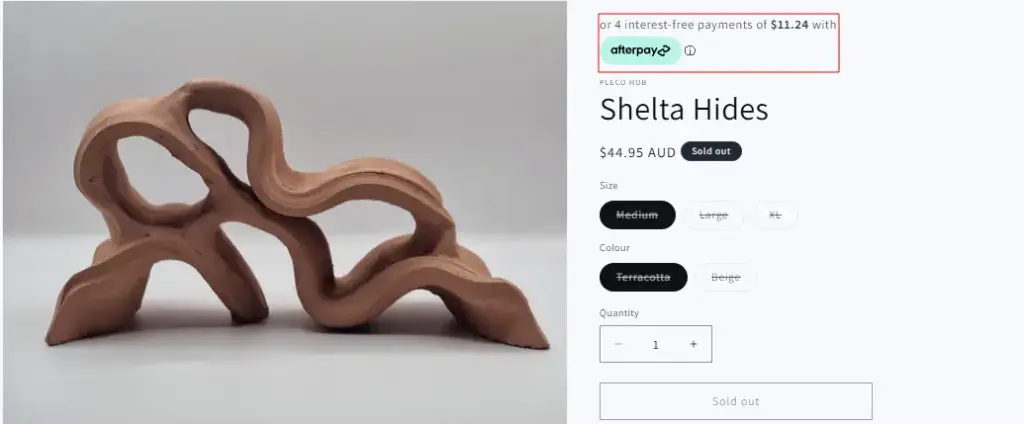
If Afterpay isn’t appearing on your Shopify product page, it can directly impact conversions—especially for customers who prefer buy-now-pay-later options. This guide walks you through the most common reasons and how to fix them step by step.
1. Make Sure Afterpay Is Activated in Shopify
First, confirm that Afterpay is properly enabled.
- Go to Shopify Admin
- Click Settings → Payments
- Under Alternative payment methods, check if Afterpay is activated
- If not, click Add payment methods and enable it
If it’s already enabled, move to the next step.
2. Confirm Your Store Is Approved by Afterpay
Afterpay must approve your store before it fully works. Even if it’s added in Shopify, it won’t display unless:
- Your application is approved
- Your business type is supported
- Your country is supported (Australia, US, UK, etc.)
- Your products are eligible
Log in to your Afterpay merchant dashboard to confirm your approval status.
3. Manually Add Afterpay to Product Page (Liquid Code Fix)
If it’s still not showing, you may need to manually render the Afterpay snippet.
- Go to : Online Store → Themes → Edit Code → snippets -> Create a file name it “afterpay-product-page.liquid” paste the code below
- Render code and paste it on the Theme Library -> Edit Theme -> Products -> Add block on the product page “Custom Liquid (screenshot below)“
{% render 'afterpay-product-page.liquid' %}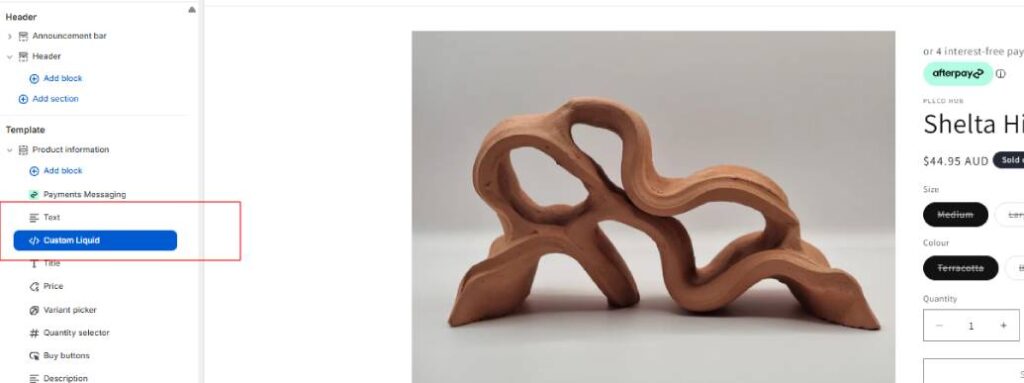
afterpay-product-page.liquid
{% assign installment_price = product.price | plus: 3 | divided_by: 4 %}
<div class="afterpay-msg-block">
<p class="afterpay-msg-text">
or 4 interest-free payments of
<strong>{{ installment_price | money }}</strong>
with
<span class="afterpay-inline-logo">
<img
src="{{ 'after-pay-logo.png' | asset_url }}"
alt="Afterpay"
class="afterpay-logo-img"
width="65"
height="auto"
/>
</span>
<button class="afterpay-info-trigger" onclick="document.getElementById('ap-modal').style.display='flex'" aria-label="Learn more about Afterpay">ⓘ</button>
</p>
</div>
<!-- Afterpay Info Modal -->
<div class="ap-modal-overlay" id="ap-modal" style="display:none;" onclick="if(event.target===this)this.style.display='none'">
<div class="ap-modal-box">
<button class="ap-modal-close" onclick="document.getElementById('ap-modal').style.display='none'" aria-label="Close">×</button>
<div style="display:flex; justify-content:center; margin-bottom:14px;">
<img
src="{{ 'after-pay-blue.png' | asset_url }}"
alt="Afterpay"
width="100"
height="auto"
/>
</div>
<h3 style="margin:0 0 8px; font-size:18px; text-align:center;color:#000;">Shop now. Pay later.</h3>
<p style="font-size:13px; color:#444; text-align:center; margin:0 0 18px; line-height:1.6;">
Split into <strong>4 interest-free payments</strong>. No fees when you pay on time.
</p>
<div class="ap-steps">
<div class="ap-step"><span class="ap-num">1</span><p>Add items to cart</p></div>
<div class="ap-step"><span class="ap-num">2</span><p>Select Afterpay at checkout</p></div>
<div class="ap-step"><span class="ap-num">3</span><p>Log in or sign up</p></div>
<div class="ap-step"><span class="ap-num">4</span><p>Pay in 4 installments</p></div>
</div>
<a href="https://www.afterpay.com/en-AU/how-it-works" target="_blank" rel="noopener" style="display:block; text-align:center; font-size:13px; color:#000; font-weight:600; text-decoration:underline; margin-top:16px;">
Learn more about Afterpay →
</a>
</div>
</div>
<style>
.afterpay-msg-block {
margin: 6px 0;
padding: 8px 12px;
border-radius: 6px;
display: inline-block;
width: 100%;
box-sizing: border-box;
}
.afterpay-msg-text {
margin: 0;
font-size: 13px;
color: #fff;
display: flex;
align-items: center;
gap: 4px;
flex-wrap: wrap;
line-height: 1.4;
}
.afterpay-inline-logo {
display: inline-flex;
align-items: center;
}
.afterpay-logo-img {
width: 65px;
height: auto;
display: block;
vertical-align: middle;
}
.afterpay-info-trigger {
background: none;
border: none;
cursor: pointer;
font-size: 13px;
color: #666;
padding: 0;
line-height: 1;
}
.afterpay-info-trigger:hover { color: #000; }
.ap-modal-overlay {
position: fixed;
inset: 0;
background: rgba(0,0,0,0.5);
z-index: 99999;
display: flex;
align-items: center;
justify-content: center;
padding: 20px;
}
.ap-modal-box {
background: #fff;
border-radius: 12px;
padding: 28px 22px;
max-width: 380px;
width: 100%;
position: relative;
box-shadow: 0 20px 60px rgba(0,0,0,0.2);
}
.ap-modal-close {
position: absolute;
top: 10px;
right: 14px;
background: none;
border: none;
font-size: 20px;
cursor: pointer;
color: #666;
}
.ap-modal-close:hover { color: #000; }
.ap-steps {
display: grid;
grid-template-columns: 1fr 1fr;
gap: 10px;
}
.ap-step {
display: flex;
align-items: flex-start;
gap: 7px;
}
.ap-num {
background: #B2FCE4;
color: #000;
font-weight: 700;
font-size: 11px;
width: 20px;
height: 20px;
border-radius: 50%;
display: flex;
align-items: center;
justify-content: center;
flex-shrink: 0;
}
.ap-step p {
margin: 0;
font-size: 12px;
color: #333;
line-height: 1.4;
}
@media (max-width: 480px) {
.ap-steps { grid-template-columns: 1fr; }
}
</style>