


It can be annoying to get the “Error Moving to Trash” warning in WordPress, particularly if you’re merely attempting to tidy up your website. This error typically indicates more serious problems, such as plugin incompatibilities or database difficulties, whether you’re deleting a post, a page, or even a media file.
Let’s walk through a few practical steps to help you fix it.
1. Check Your File and Folder Permissions
One of the most common culprits is incorrect file or folder permissions on your server. If WordPress doesn’t have the right access to manage files and folders, it can’t perform actions like moving something to the trash.
To fix this, you’ll need access to your hosting account or use an FTP client like FileZilla. Here’s what to look for:
755 – Permission set for folders644 – Permission for file

Check the wp-content, wp-admin, wp-includes, and uploads folders. Right-click on each folder via your FTP client and look for the “File Permissions” option. Update them if needed.
2. Disable Plugins Temporarily
Another possible cause is a plugin conflict. Security, caching, or custom functionality plugins might interfere with WordPress’s built-in trash functionality.
Try this:
- Log into your WordPress dashboard
- Go to Plugins > Installed Plugins
- Deactivate all plugins temporarily
- Now, try deleting the item again
or
Try Renaming the file on the server with wp-content > plugins. Rename it to “plugins-old”
If the error disappears, reactivate the plugins one by one to find out which one was causing the problem.
3. Switch to a Default Theme
Sometimes your theme is the issue rather than plugins. It’s possible that an old or badly coded theme is interfering with admin features.
To test this:
- Head to Appearance > Themes
- Activate a default theme like Twenty Twenty-One or Twenty Twenty-Four
- Try deleting the item again
If it works, your theme may need some debugging or an update.
4. Repair Your WordPress Database
A corrupted database can prevent WordPress from executing basic tasks like moving something to the trash. Fortunately, WordPress includes a built-in database repair tool.
Here’s how to use it:
- Open your
wp-config.phpfile (located in the root of your site) - Add this line at the bottom
define('WP_ALLOW_REPAIR', true);Visit this URL in your browser:
yoursite.com/wp-admin/maint/repair.php
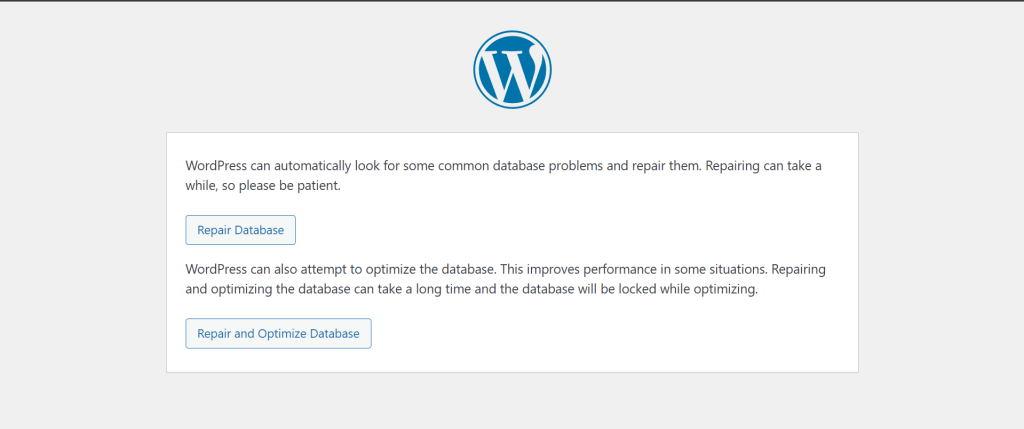
- Choose either “Repair Database” or “Repair and Optimize Database”
- Once done, remove that line from
wp-config.phpto avoid leaving it exposed
This process can help fix underlying issues that may be triggering the error.
5. Clear Your Site and Browser Cache
If you’re using a caching plugin or your host provides server-side caching, clear those caches. Sometimes, you’re seeing an outdated admin state, and clearing the cache can resolve it.
Also, clear your browser cache or try a different browser just to rule that out.
If you are using caching plugin like LiteSpeed Cache on your wordpress site
Go to admin dashboard top admin bar click on > Purge All

Clearing browser cache
Go to settings on your browser, search for “Cache” > Find – “Delete Browsing Data” > Cache images and files
6. Check for JavaScript Errors
Some plugins or themes might be causing JavaScript conflicts in your WordPress dashboard, which could block trash actions.
Here’s what you can do:
- Open your browser’s developer tools (usually by pressing F12 or right-clicking and selecting “Inspect”)
- Go to the “Console” tab
- Try to delete the item again and watch for red error messages in the console
If you see an error message here, it can point you to the specific script or plugin causing trouble.
7. Reinstall WordPress Core
If something went wrong during a WordPress update or files became corrupted, reinstalling the WordPress core files can help.
No worries this won’t affect your content.|
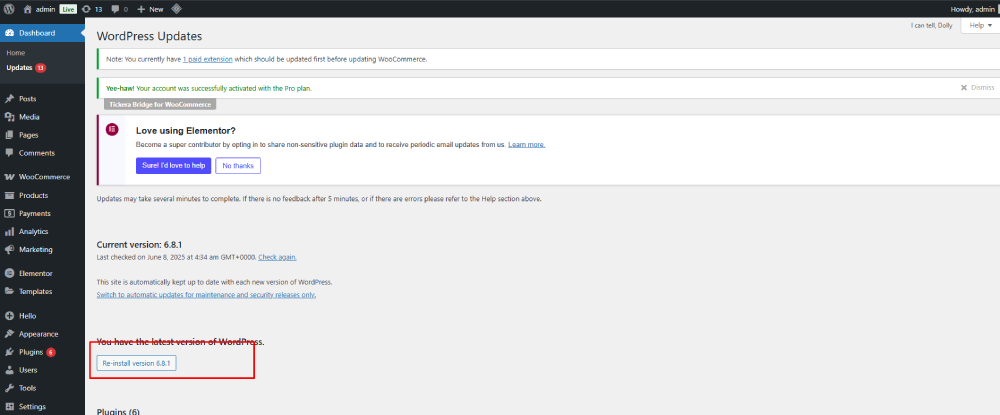
- Go to Dashboard > Updates
- Click the Re-install Version button (Depends on your version )
It’s a simple way to make sure your WordPress core files are intact.
Final Thoughts
With the right information, fixing WordPress’ “Error Moving to Trash” is typically simple. Plugins, themes, permissions, or database problems are usually the cause. If you take things step-by-step, you can generally figure out the solution without delving too deeply into the code.
Checking your hosting logs or contacting your hosting company may be worthwhile if the issue persists despite all of this. Misconfigurations or restrictions at the server level may occasionally be the underlying cause.
Still unable to move? Tell me what you’re attempting to remove (posts, media, custom post kinds, etc.), and I’ll assist you with additional troubleshooting. Contact Us
