


Running into an HTTP Error 500 on your WordPress site can be frustrating. It often comes out of nowhere and leaves you locked out of your admin panel, staring at a blank screen. The good news? You’re not alone, and it’s usually fixable.
Common Causes of HTTP Error 500 in WordPress
- Corrupted .htaccess File
A corrupted.htaccessfile is one of the most common reasons for this error. - Plugin or Theme Conflict
A poorly coded or incompatible plugin or theme may break your site. - PHP Memory Limit Exhausted
If your site runs out of memory while processing a request, it can trigger this error. - Corrupted Core Files
WordPress core files might become corrupted during updates or installations. - Server Configuration Issues
Sometimes, the issue lies with your hosting provider or a misconfiguration on the server.
Step-by-Step Fixes for HTTP Error 500
1. Rename the .htaccess File
- Connect to your site using FTP or your hosting file manager.
- Locate the
.htaccessfile in the root directory. - Rename it to something like
.htaccess_old. - Try reloading your website.
Note: To view .htaccess file on cpanel Go to > Setting > Check Show Hidden Files
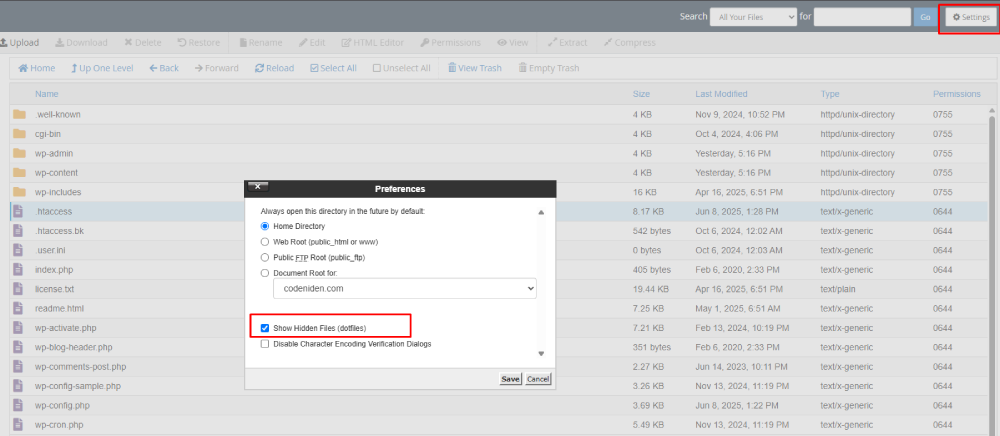
If the site works, go to Settings > Permalinks in your WordPress dashboard and click “Save Changes” to regenerate a fresh .htaccess file.
You can also copy this code from wordpress.org default htaccess
Basic WP
# BEGIN WordPress

RewriteEngine On
RewriteRule .* - [E=HTTP_AUTHORIZATION:%{HTTP:Authorization}]
RewriteBase /
RewriteRule ^index\.php$ - [L]
RewriteCond %{REQUEST_FILENAME} !-f
RewriteCond %{REQUEST_FILENAME} !-d
RewriteRule . /index.php [L]

# END WordPress
Multisite
WordPress 3.5 and up
# BEGIN WordPress Multisite
# Using subfolder network type: https://wordpress.org/documentation/article/htaccess/#multisite

RewriteEngine On
RewriteRule .* - [E=HTTP_AUTHORIZATION:%{HTTP:Authorization}]
RewriteBase /
RewriteRule ^index\.php$ - [L]

# add a trailing slash to /wp-admin
RewriteRule ^([_0-9a-zA-Z-]+/)?wp-admin$ $1wp-admin/ [R=301,L]

RewriteCond %{REQUEST_FILENAME} -f [OR]
RewriteCond %{REQUEST_FILENAME} -d
RewriteRule ^ - [L]
RewriteRule ^([_0-9a-zA-Z-]+/)?(wp-(content|admin|includes).*) $2 [L]
RewriteRule ^([_0-9a-zA-Z-]+/)?(.*\.php)$ $2 [L]
RewriteRule . index.php [L]

# END WordPress Multisite
2. Disable WordPress Plugins
- Access your files via FTP or file manager.
- Navigate to
wp-contentand rename thepluginsfolder toplugins_old. - Check your site again.
If the site loads, the issue is likely with a plugin. Rename the folder back, then disable plugins one-by-one until you find the culprit.
3. Switch to a Default Theme
- Go to
wp-content/themesand rename your current theme folder. - WordPress will automatically revert to a default theme like Twenty Twenty-One.
If that resolves the error, the problem is with your theme.
4. Increase PHP Memory Limit
- Edit your
wp-config.phpfile. - Add this line before the “That’s all, stop editing!” line:
define('WP_MEMORY_LIMIT', '256M');5. Clear Your Browser Cache
If this works, consider talking to your hosting provider about upgrading your hosting plan or checking for resource-heavy plugins.
If you’re encountering a 500 Internal Server Error, a 404 error, or even the dreaded White Screen of Death, one of the simplest troubleshooting steps is to clear your browser’s cache and cookies.
Over time, cached files can become corrupted or outdated, which may prevent websites from loading correctly. Clearing them can help resolve these issues.
Before You Clear the Cache:
First, check whether the issue is affecting everyone or just you. Use a tool like Is It Down Right Now to confirm if the website is globally inaccessible.
- If it’s just you: proceed with clearing your cache.
- If the site is down for everyone: the issue is likely server-side.
How to Clear Browser Cache:
The process varies slightly depending on the browser, but generally, you’ll find it under Settings > Privacy & Security.
For Google Chrome users:
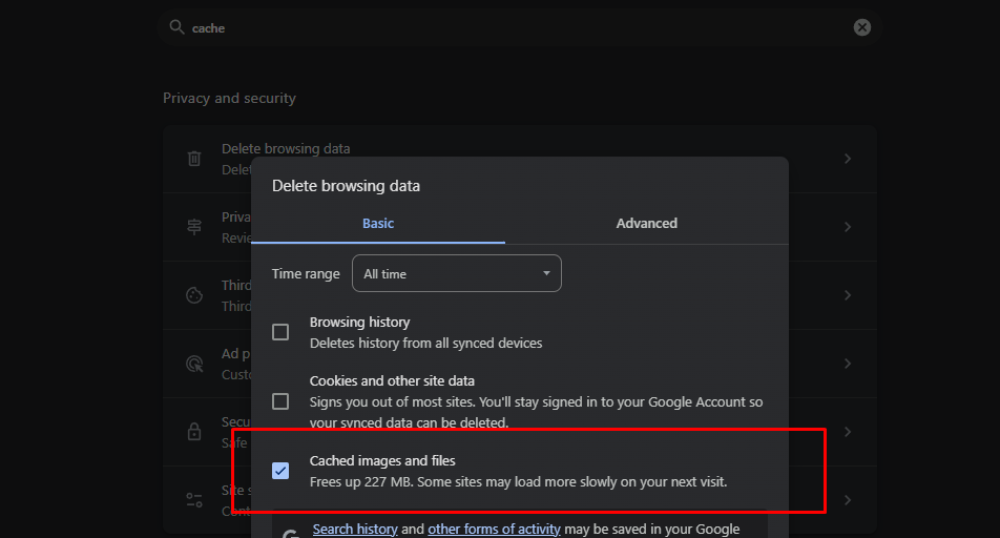
- Press Ctrl + Shift + Delete or Ctrl + Shift + r on Windows (or Command + Shift + Delete on Mac).
- In the popup window, select Cookies and other site data and Cached images and files.
- Click Clear data.
After Clearing the Cache:
Once done, reload the page and see if the issue has been resolved.
If the problem still persists, don’t worry—move on to the next troubleshooting method.
6. Re-upload WordPress Core Files
- Download a fresh copy of WordPress from wordpress.org.
- Replace the
wp-adminandwp-includesfolders via FTP or server folder with the new ones. - Don’t touch the
wp-contentfolder.
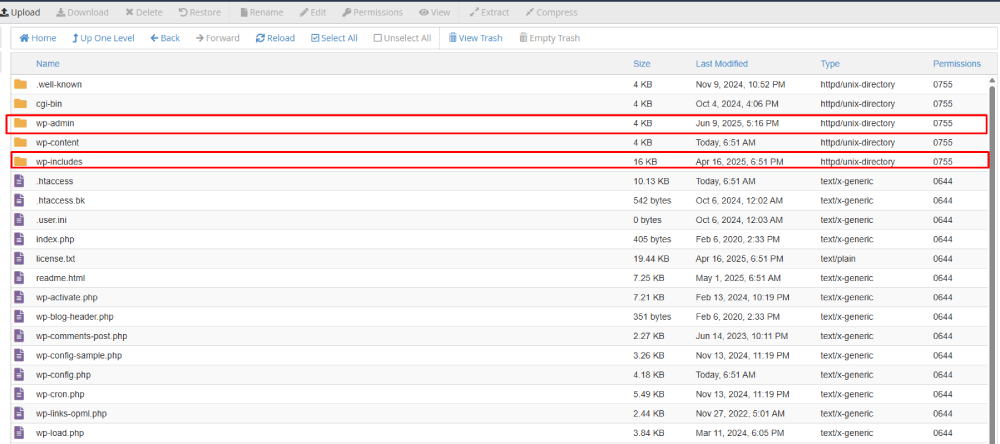
This helps if the error stems from corrupted core files.
7. Check Server Logs
If none of the above steps work, check the error logs on your server. These logs can usually be accessed from your hosting control panel or by asking support.
8. Set Correct File Permissions
Incorrect permissions may trigger 500 errors.
Use FTP or SSH to set:
File : 644
Folder : 755

You can apply it recursively:
find . -type d -exec chmod 755 {} \;
find . -type f -exec chmod 644 {} \;
9. Disable .user.ini or php.ini Settings
If you’ve manually changed php.ini, .user.ini, or .htaccess recently, try temporarily renaming them. Incorrect directives could crash PHP.
10. Check PHP Version Compatibility
Ensure your PHP version is supported by your WordPress version.
You can switch versions via cPanel > Select PHP Version or contact your hosting support.
Final Thoughts
The HTTP Error 500 in WordPress may seem alarming, but it usually stems from common, fixable issues. Whether it’s a plugin, theme, or server setting, troubleshooting step-by-step will help you isolate and solve the problem.
If you’re unsure or prefer not to handle it yourself, don’t hesitate to contact your hosting provider or a WordPress developer for help.
